 Unreal Cloud Docs
Get Started
From signup to your first downloadable build in six steps.
Unreal Cloud builds your Unreal Engine project in the cloud. Connect a GitHub repository or a Perforce server, pick a platform and engine version, and get packaged builds — triggered manually, or automatically on every GitHub push or pull request.
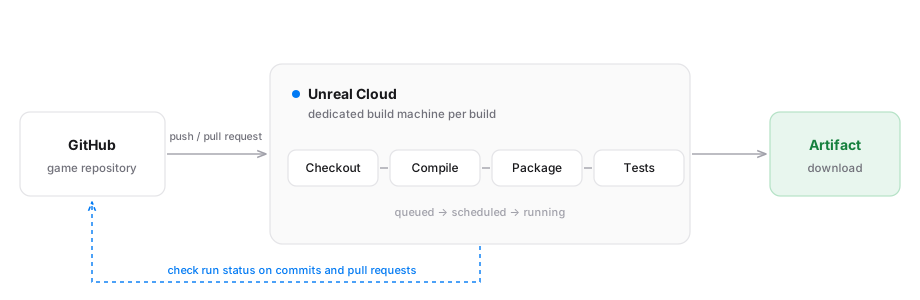
This guide takes you from signup to your first downloadable build.
Create an account
Sign up at the Unreal Cloud dashboard with your email address, then verify your email. Every account belongs to at least one organization — the workspace that holds your projects, members, and billing.
Create a project
A project maps to one Unreal Engine game repository.
- Open your organization and go to Projects.
- Click Create project and give it a name.
Connect your repository
Builds pull your code from GitHub or Perforce, so each project needs a connected repository. For GitHub:
- Open your project's Settings tab.
- Under Version control, click Connect GitHub. A GitHub window opens asking you to install the Unreal Cloud GitHub App.
- Install the app on the account or organization that owns your repository, granting access to the repository you want to build.
- Back in Unreal Cloud, select the repository for this project.
For Perforce, click Connect Perforce instead and follow Perforce integration.
The connection status is shown on the project page. You can disconnect or change the repository at any time from project settings.
Create a preset
A preset is a reusable build configuration: platform, engine version, trigger, and test settings. You need at least one preset to build.
-
Open your project's Presets tab and click Create preset.
-
Give it a name (for example
Windows – main). -
Choose a platform (Windows 64-bit, Linux, or Android).
-
Choose an Unreal Engine version from the supported versions list.
-
Choose a trigger:
Trigger Builds when None Only when you trigger it manually Push A branch is pushed Pull Request A PR is opened or updated (optionally filtered by base branch) -
Optionally enable Run tests to run your project's automation tests after each successful build.
See Presets for the full reference.
Trigger your first build
- Go to the project's Builds tab and click Trigger build.
- Select a preset and confirm.
The build appears in the list and moves through its lifecycle — queued, scheduled, running — until it passes or fails. Click the build to follow the logs live. See Build lifecycle for what each status means.
Download the result
When the build passes, its packaged output is attached as an artifact. Open the build's menu in the builds table and choose the artifact to download it.
Next steps
GitHub integration
Automate builds on push and pull requests, with check runs on your commits.
Perforce integration
Build any stream of your Perforce server at an exact changelist.
Automated tests
Run automation tests with each build and get an interactive report.
Members and roles
Invite teammates so everyone can trigger builds and see results.
Usage and billing
Understand how compute and storage are metered and billed.
Questions or feedback? Contact us at support@unrealcloud.io.